


Remote OEM Online Programming: VCI Access and Account Requirements
Remote OEM online programming uses two connections: one to the vehicle interface and another to the OEM backend. eLinehub maps the workshop VCI to your PC while your OEM software uses that PC’s internet path for online services. Account eligibility, regional access and security permissions remain subject to the OEM’s requirements.
- ✓Run XENTRY SCN, SPS2 flash, ODIS GeKo, or BMW AOS from your own desk — the workshop provides the VCI and the vehicle
- ✓Your OEM login stays on your PC. The workshop never sees your credentials or your diagnostic steps.
- ✓Serving workshops in other countries? Check OEM access requirements and the VPN setup limits in Section 4.
You bring OEM software and accounts. The workshop connects the VCI. eLinehub provides the bridge. · By eLinehub ·
OEM Account Access Depends on More Than the Connection Path
OEM online operations require the appropriate account, subscription and permissions. Regional eligibility and security checks depend on the OEM service. The source IP is one aspect of a connection; it is not sufficient to determine whether a session is authorized or why an account was blocked.
If an account is restricted, use the OEM’s account notices and support process to establish the reason and recovery steps. Changing the VCI connection method does not reinstate an account or guarantee that a future session will be accepted.
For connection planning, identify which PC runs the OEM software. Its configured internet route carries the OEM backend session. Screen sharing and device mapping place the software on different PCs; either setup still needs valid OEM access.
Situation A: Remote desktop — OEM software runs on the workshop PC.
A Technician uses TeamViewer or AnyDesk to control OEM software running on a workshop PC. That software can communicate with the VCI connected at the workshop. Its OEM backend session uses the workshop PC’s configured internet path.
Screen sharing alone does not map the workshop VCI into the Technician PC’s operating system. It also does not inherently prevent programming on the workshop PC. Assess the software, interface, permissions and OEM procedure for the actual setup.
OEM credentials entered in this arrangement are used on the workshop PC. The diagnostic interface is also displayed there. Consider who can access that environment and follow the OEM’s account-use requirements.
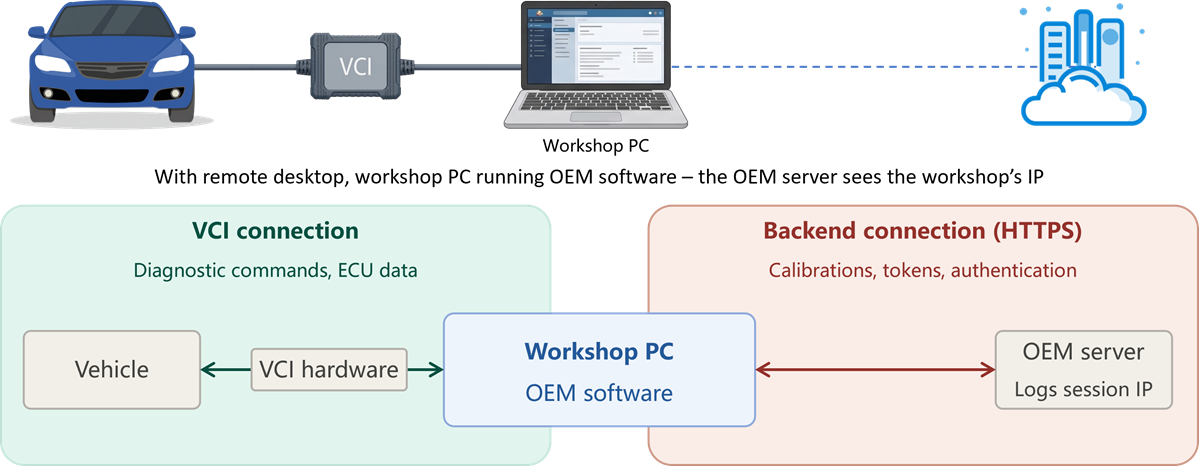
Situation B: Remote desktop with VPN — routing changes, permissions do not.
A VPN on the workshop PC may change the route and source IP of its OEM backend connection, depending on configuration. The OEM software and account session still run on the workshop PC.
A VPN does not provide OEM eligibility, a subscription or security permissions. Follow the OEM’s requirements for the service and location; do not treat a different exit IP as proof of authorized access or protection from account restrictions.
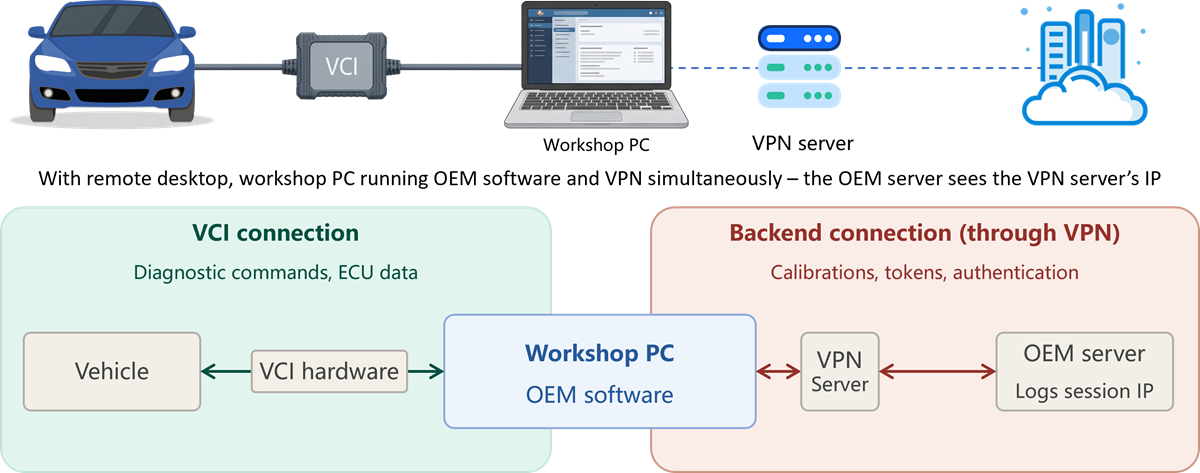
Where the session runs
Choose the setup based on where OEM software should run and who controls that environment. Neither screen sharing, device mapping nor a VPN grants OEM account access. Verify permissions separately from the vehicle and backend connections.
The next question is: which of your daily operations actually trigger this backend connection? Not all of them do.
Which OEM Operations Require Online Connectivity
The online operations below need access to OEM backend services. Check the current account, subscription and operation requirements for the service you use.
For GM programming, check the current ACDelco TDS or regional service portal requirements for your account, location and intended operation. A portal error or failed login alone does not establish that an IP-region restriction is the cause.
During an online programming session, two things happen simultaneously on the machine running the OEM software. The software talks to the VCI connected to the vehicle — sending diagnostic commands and receiving ECU data. At the same time, it talks to the OEM backend server over HTTPS — downloading calibration files, exchanging tokens, authenticating the session. These two connections are independent of each other.
The IP address the OEM backend logs comes from the second connection — the HTTPS link to the OEM server. That connection uses whichever internet connection the machine has. The question is: which machine runs the OEM software?
Some operations need an online sign-in before local work can begin. GDS2 is an example. Check the manufacturer’s current requirements for your operation, and distinguish the login from any connection needed during the work.
How eLinehub Connects the VCI to Your OEM Software
eLinehub provides the remote VCI connection. You supply the OEM software, compatible drivers, account and required permissions. Confirm that the software detects the mapped interface before starting an online operation.
The workshop connects the VCI to the vehicle and runs eLinehub Mechanic. The Technician accepts the connection and maps the USB device or network adapter to their own Windows PC. OEM software runs on that PC and accesses the mapped interface through the appropriate drivers.
The OEM software’s HTTPS connection uses the Technician PC’s configured internet route, including any proxy or VPN affecting that route. eLinehub handles the separate VCI connection; it does not proxy or modify the OEM backend session. The OEM still determines whether the account and operation are permitted.
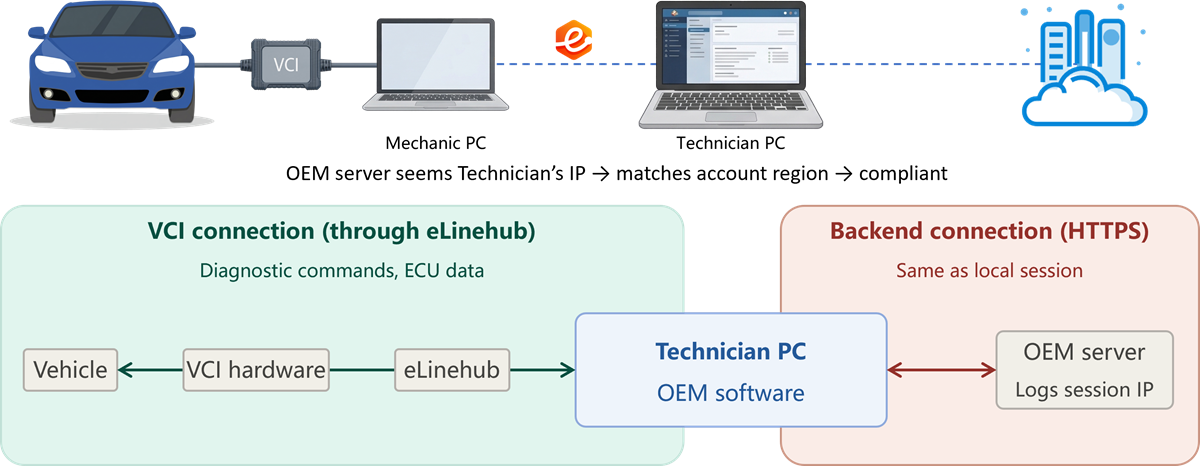
Device access and OEM account access are separate requirements. Running OEM software on your own PC lets you use your own environment and internet connection. It does not guarantee regional eligibility or prevent account restrictions, even when the connection IP and account registration are in the same country.
This works for both VCI types: USB mapping (MDI 2, VCM3, VI3, MicroPod II, HAC) and network adapter bridging (ENET cable, ICOM Next, SD Connect, VAS6154A, JLR DoIP VCI, VOE adapter). The choice depends on the VCI hardware, not on whether the operation goes online.
The workshop runs eLinehub Mechanic to share the VCI. You sign in to OEM software on your own PC without entering those credentials on the workshop PC. The diagnostic interface remains on your screen unless you choose to share it separately. OEM authentication still communicates with the relevant OEM service.
Consider a Technician using OEM software on their own Windows PC with a VCI at a partner workshop. With screen sharing, the software would instead run on the workshop PC. With eLinehub, the VCI is mapped to the Technician PC, keeping the OEM software and backend connection there.
This example illustrates the connection paths, not a verified account-recovery outcome. The Technician must still confirm the OEM’s permissions for the account, location, vehicle and operation. eLinehub does not restore blocked accounts or guarantee acceptance of cross-border sessions.
Start your first remote online programming session
Sign in to the Technician Web App to check your account’s current trial eligibility and terms.
Cross-Border Scenarios: Adding VPN to eLinehub
For cross-border work, confirm OEM eligibility and service requirements before choosing a network setup. eLinehub does not require a VPN simply because the workshop is in another country.
If the Technician travels to another country, the OEM backend uses the internet path of the PC running the software. Check the OEM’s rules for use from that location. A VPN exit in the registration country does not establish permission or guarantee account access.
If the OEM’s documentation requires or permits a VPN for the intended service, follow those instructions. An HTTPS login or online programming operation does not by itself mean that a VPN is required.
VPN clients can change virtual adapters and routing tables, which may affect both VCI traffic and OEM backend access. The arrangements below separate some components, but none guarantees conflict-free routing. Validate both data paths with the actual software, devices and VPN configuration before use.
4.1 USB VCI + VPN
For MDI 2, VCM3, VI3, MicroPod II, HAC, and other USB VCI devices.
USB mapping creates a virtual USB Hub on the Technician’s PC at the driver level. The mapped VCI exists only within that PC’s operating system — it cannot be forwarded through a physical cable or USB connection to a second computer. A physical dual-machine setup is not available for USB VCI devices. Two options remain.
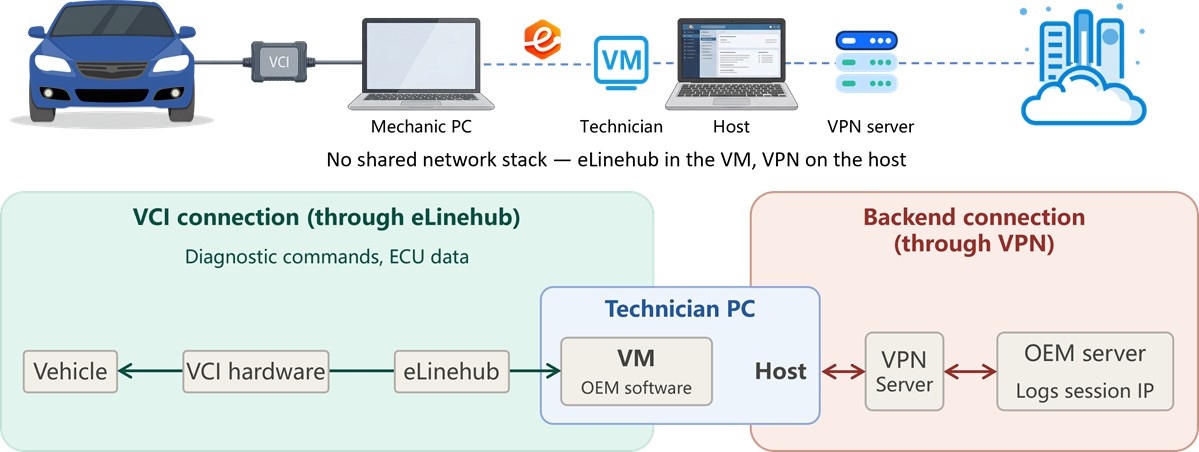
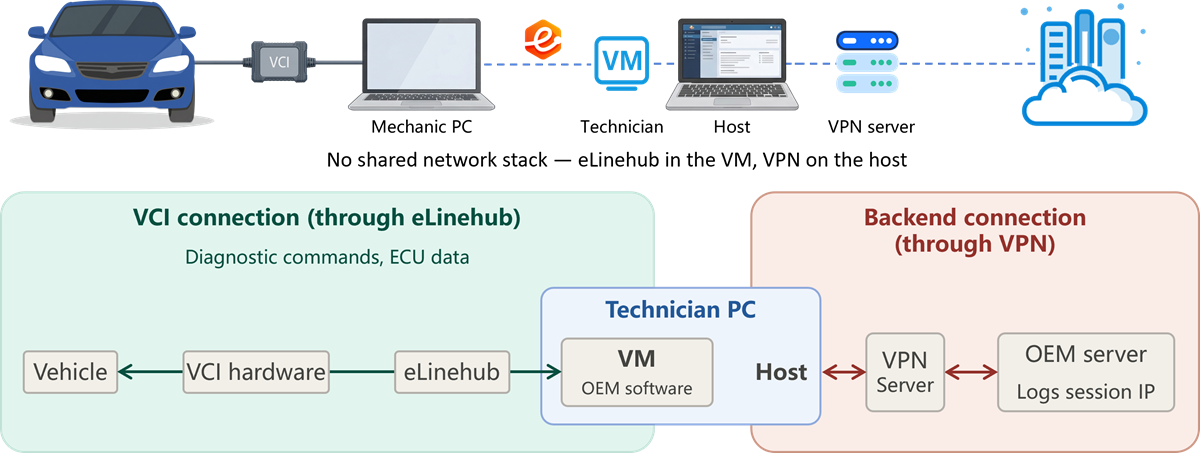
Virtual machine — eLinehub and OEM software in the VM, VPN on the host.
A Windows VM runs eLinehub Technician and the OEM software, with NAT networking through the host. The host runs the VPN client. The mapped USB device is available inside the guest OS. Whether guest traffic uses the VPN depends on the host and VPN routing configuration; verify both OEM backend access and the eLinehub connection.
Confirm that the OEM software supports the VM environment and that its licensing and hardware checks work in that setup. Strict physical-hardware validation inside a VM remains untested. Separating host and guest adapters does not guarantee compatibility or programming success.
Single-machine coexistence — eLinehub, OEM software, and VPN on the same PC.
eLinehub, OEM software and the VPN run on one Windows PC. Results depend on the VPN client and routing configuration. Verify VCI discovery and OEM backend access together; a VM is an alternative arrangement to validate, not a guarantee of full network isolation.
4.2 Network Adapter VCI + VPN
For ENET cables, ICOM Next, SD Connect, VAS6154A, JLR DoIP VCI, VOE adapter, and other network adapter VCI devices.
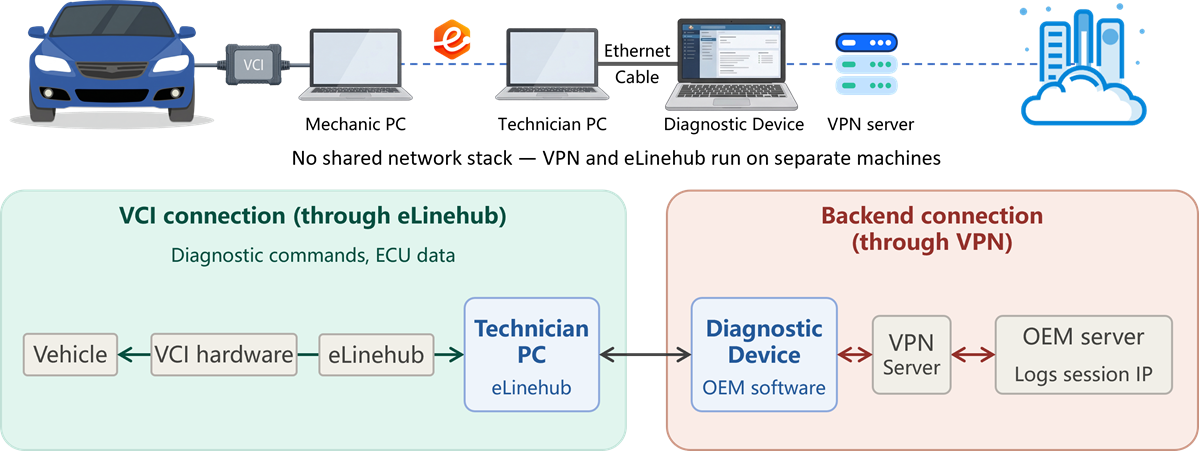
Physical dual-machine — relay PC runs eLinehub, diagnostic PC runs OEM software and VPN.
A relay PC runs eLinehub Technician and bridges the remote workshop adapter to a physical Ethernet port. An Ethernet cable connects it to the diagnostic PC, which runs the OEM software and VPN. eLinehub is not installed on the diagnostic PC in this arrangement.
Separating the two applications avoids placing eLinehub and VPN adapters in the same OS. The diagnostic PC still needs working routes to both the VCI through Ethernet and the OEM backend. VPN policies can affect those routes, so verify device discovery and backend access after connecting the VPN.
Virtual machine — eLinehub and OEM software in the VM, VPN on the host.
As in §4.1 Option A, a Windows VM runs eLinehub and OEM software, with NAT networking through the host running the VPN. eLinehub maps the remote adapter to eLinehub Link in the guest. Validate software support and both network paths. A physical dual-machine setup avoids the VM dependency but still requires routing checks.
Single-machine coexistence — eLinehub, OEM software, and VPN on the same PC.
eLinehub bridges the remote workshop adapter while VPN handles the OEM backend connection, both sharing the same network stack. This works in some configurations, but users have reported connection failures when VPN routing interferes with the bridged adapter. If single-machine operation is required and the dual-machine setup is not feasible, the VM approach (Option B) provides better isolation than sharing one OS.
For the VM/VPN arrangements and their limits, see Cross-Border VPN Setup on this page. eLinehub and OEM software run in a Windows guest; the VPN runs on the host. VM use with software requiring physical-hardware validation remains untested. The Network Adapter Bridging Guide covers adapter selection and physical dual-machine wiring.
Frequently Asked Questions
- Which OEM operations require an online backend connection?
- Check each manufacturer’s current requirements for the operation. Mercedes-Benz uses SCN coding in XENTRY; SFD is Volkswagen Group’s Vehicle Diagnostics Protection system.
- My XENTRY account was flagged for suspicious IP activity. Can eLinehub prevent this from happening again?
- eLinehub keeps OEM software on the Technician's PC, so its connection to the OEM backend uses that PC's internet path. This does not guarantee that an OEM will accept the account, region, or session. eLinehub cannot restore a blocked XENTRY account; contact the OEM helpdesk for reinstatement.
- Do I need a VPN to use eLinehub for online programming?
- A remote workshop in another country does not by itself require a VPN. OEM software uses the configured internet path of the PC where it runs. Follow the OEM’s requirements if a VPN is required or permitted for the intended service. A VPN does not grant regional eligibility or account permissions; verify its effect on both VCI and backend connections.
- Why can’t I use a dual-machine setup for USB VCI devices?
- USB mapping makes the device available within the Technician PC's Windows OS; it cannot be forwarded by a physical cable to a second PC. The VM option places eLinehub and OEM software in a Windows guest with NAT networking, and VPN on the host. Validate the specific software and VPN combination; strict physical-hardware validation inside a VM remains untested.
- Does eLinehub interact with OEM backend servers?
- eLinehub maps the workshop VCI to the Technician’s PC. It does not proxy or modify communication between the OEM software and OEM backend. That separate session uses the PC’s configured internet path and remains subject to the OEM’s account, regional and security requirements.
- Can I use eLinehub for online programming if my diagnostic device runs Android or a sealed OS?
- For network adapter VCI devices (ENET cables, ICOM, SD Connect, VAS6154A, DoIP VCI), the dual-machine setup places eLinehub on a separate relay PC connected by Ethernet cable — the diagnostic device does not need eLinehub installed. For USB VCI devices, eLinehub Technician software must be installed on the same Windows PC that runs the OEM software. Devices that cannot install Windows software cannot use USB mapping.
- How should I check the connection before starting the job?
- A wired internet connection is recommended at both ends. Use the eLinehub network quality test and review the results shown in the interface. The technician decides whether the connection suits the job. Follow the vehicle manufacturer’s procedure before writing. Network test results alone do not establish that a write can begin. The OEM software reaches its backend separately through the technician’s PC.
- Will a VPN on my Technician PC interfere with eLinehub?
- A VPN client can change routing and interfere with eLinehub; an HTTPS login alone is not a VPN. For network adapter VCI devices, the dual-machine option separates eLinehub and OEM software plus VPN. For USB mapping, the VM option places eLinehub and OEM software in the guest, VPN on the host. Single-machine results depend on the VPN configuration; validate the specific combination before use.
Get Started
Sign in to the Technician Web App to check your account’s current trial eligibility and terms. eLinehub Mechanic is free to use.