


Technical Guide
How eLinehub Network Adapter Bridging Works — and How to Choose the Right Adapter
eLinehub maps VCI hardware from a remote workshop to the Technician's PC. For DoIP and RNDIS-based VCI devices — BMW ENET cables, ICOM Next, Mercedes SD Connect, VAS6154A, JLR DoIP VCI, and similar Ethernet-connected interfaces — the Technician selects Mechanic Network Adapter as the connection device. The software then asks one question: which network adapter on the Technician's PC should the remote adapter be bridged to?
For step-by-step connection instructions, see the Remote Connection Setup Guide.
Section 1
What Happens When You Select "Mechanic Network Adapter"
eLinehub installs the eLinehub Link virtual network adapter on the Technician PC. Windows lists it alongside physical network adapters such as Ethernet and Ethernet 2.
After the Mechanic shares a network adapter and the Technician accepts the order, select the target adapter on the Technician PC.
The bridge can target either type of adapter:
- eLinehub Link — The convenient option when no fixed IP is required.
- Physical network adapter — The general solution. Choose local loopback or an external diagnostic device according to where the diagnostic software runs.
Physical network bridging is the general solution. Use eLinehub Link when no fixed IP is required. For RJ45 connections that require a fixed IP, use a physical network adapter. If the diagnostic terminal cannot run eLinehub Technician, use the external-device setup.
Section 2
Link and Physical Adapters
eLinehub Link
Link is installed with eLinehub. It does not require a second computer or a loopback cable.
Link is a Layer 2 virtual Ethernet adapter. It carries Ethernet frames between the workshop adapter and the Technician PC.
Use Link when your setup does not require a fixed IP. Network adapter bridging uses Relay mode; P2P (Direct) is available only for eligible USB mapping sessions.
Physical Adapter / Ethernet
Choose a physical Ethernet interface on the Technician PC. Use an Ethernet cable between two interfaces on the same PC for local loopback, or between the Technician PC and a separate diagnostic terminal for an external-device setup.
Physical network bridging is the general solution. Use it in these cases:
- The diagnostic software requires a specific physical interface, or the RJ45 connection requires a fixed IP. Use local loopback if the diagnostic software runs on the Technician PC.
- The diagnostic terminal cannot install eLinehub Technician. Use an external device connected by Ethernet to the PC running Technician.
- You need complete network stack isolation from a VPN client running on the diagnostic PC (covered in Section 6).
When to Use Each Option
Link is the simpler option when no fixed IP is needed. Use a physical adapter when the software requires physical adapter binding or a fixed IP over RJ45.
Fixed IP and Adapter Choice
Check the OEM procedure for the exact VCI and connection. Use physical bridging when the procedure requires a fixed IP over RJ45.
For example, use physical bridging for an SD Connect C4 RJ45 setup that requires a fixed IP. A BMW ISTA setup that discovers its ICOM or ENET interface without a fixed IP can use Link.
For local loopback, leave the bridge-side interface on automatic IP and set the required address on the separate diagnostic interface. Use the values for the specific VCI and OEM procedure.
Section 3
How to choose a network adapter
Use the table to check whether Technician can run on the diagnostic PC, whether the VCI needs a fixed IP or the software must use a physical adapter, and whether an approved VPN affects routing.
Decision Table
Not sure which setup applies? Check whether the diagnostic software requires a fixed IP or a particular physical adapter. Confirm the VCI and the connection type before choosing a bridge.
Section 4
Physical Adapter: Two Ways to Wire the Cable
Use this section for physical network bridging. Choose local loopback for two interfaces on the same PC, or the external-device wiring when the diagnostic software runs on a separate terminal.
After eLinehub bridges the remote workshop adapter to a physical Ethernet port on the Technician's PC, the data exits through that port. Where the cable connects determines which wiring method you are using.
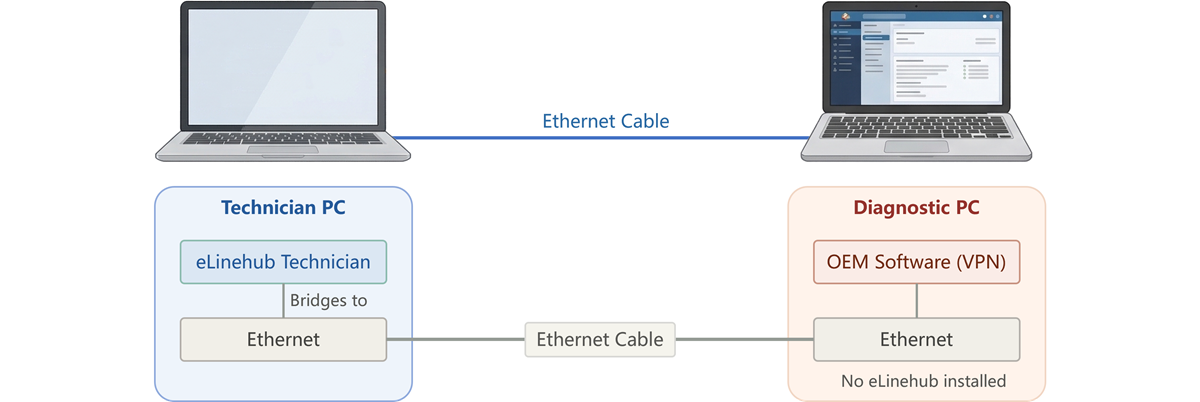
4.1 Dual-Machine + Cable (Recommended)
The relay machine runs eLinehub and bridges to one of its physical Ethernet ports. An Ethernet cable connects that port directly to the diagnostic machine. The diagnostic machine runs OEM software (and VPN if needed) with zero eLinehub components installed — its entire network stack is clean.
This is the most stable configuration and the only recommended path when VPN isolation is required.
Relay machine: eLinehub Technician software installed. Bridges the remote workshop adapter to the relay machine's physical Ethernet port.
Diagnostic machine: OEM diagnostic software, VPN client (if needed). No eLinehub installed. Connects to the relay machine's Ethernet port via a standard Ethernet cable.
4.2 Single-Machine USB-to-Ethernet Loopback
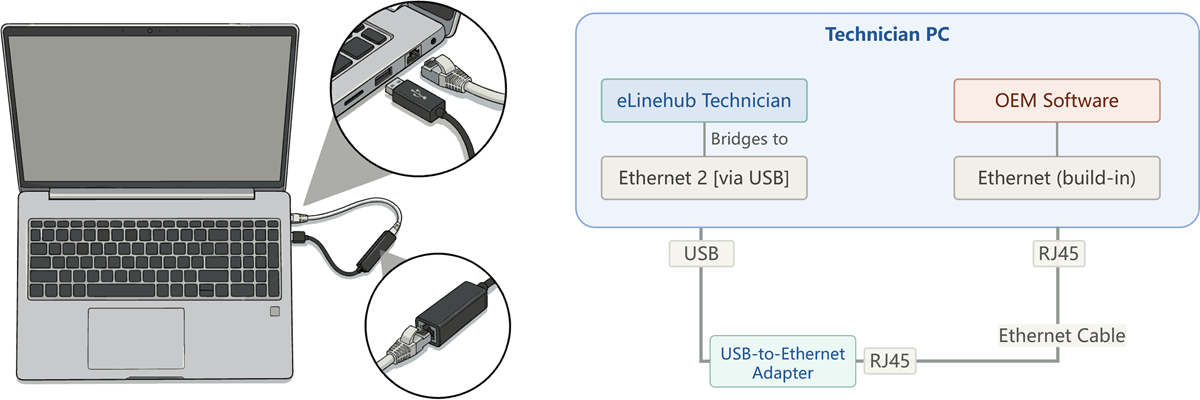
eLinehub bridges to a USB-to-Ethernet adapter — a real physical device that satisfies hardware verification checks. A short Ethernet cable loops from the USB adapter back to the PC's built-in Ethernet port. The diagnostic software binds to the built-in Ethernet port and sees a physical Ethernet connection.
This method works when the diagnostic software requires a real physical adapter but no VPN isolation is needed. Validate the exact adapter, OEM software and task before relying on this setup. Because both eLinehub and the diagnostic software run on the same machine, there is no network stack isolation — a VPN client on this machine would still conflict with eLinehub's virtual adapters.
Comparison
Section 5
Why Different Software Needs Different Adapters
The decision table tells you which adapter to use. This section explains why.
Think of the diagnostic software as a recipient accepting a delivery, and the network adapter as the person or company delivering the package. Different recipients verify the deliverer to different standards:
"Anyone can deliver." A neighbor drops it off, a kid runs it over from next door, someone from the building lobby hands it to you — the recipient does not check who brought it. As long as the package arrives at the right address, it is accepted. Most diagnostic software works this way: it sends data to an IP address, receives a response, and does not inspect the network adapter that carried the traffic. → eLinehub Link works.
“Only a registered courier with a badge.” Some diagnostic software checks the identity of the local interface before using it. If it requires physical hardware, use a physical adapter.
"The courier company must have a local warehouse." The recipient requires the delivery company to have a real physical depot in the area — not just employees, but verifiable physical infrastructure. A company that delivers reliably but operates entirely online, with no local warehouse, gets rejected. A small number of diagnostic platforms verify that the network interface is real physical hardware and reject all virtual adapters. → Physical Ethernet adapter is the only option.
How DoIP Vehicle Discovery Works — and Why Most Software Accepts Any Adapter
DoIP uses UDP for discovery and TCP for diagnostics. Vehicle discovery alone does not prove that the application accepts the adapter or can complete the job. Verify the software, driver, VCI and network together.
RNDIS and Proprietary USB-to-Ethernet Drivers
Some USB VCIs appear under Network adapters in Windows after driver installation. The adapter may be created by RNDIS or a manufacturer-specific driver. Install the matching driver on the Mechanic PC as well. When using that network interface, share it as a Mechanic Network Adapter and choose the bridge according to the connection and diagnostic requirements.
What Makes the Difference at the Driver Level
eLinehub Link carries Layer 2 Ethernet frames, including ARP, UDP discovery traffic and TCP sessions.
Whether diagnostic software accepts a virtual adapter depends on its interface requirements. A physical adapter is the general solution for software that must bind to physical hardware.
Do not infer compatibility from the adapter name alone. Verify the VCI, OEM software version and network configuration.
Check the OEM procedure before setting an IP address. When the RJ45 connection requires a fixed IP, select a physical adapter.
Section 6
VPN routing and the diagnostic connection
A vehicle gateway and a VPN can affect different routes. Verify internet access on the Technician PC and the VCI connection separately before starting work. A physical adapter alone does not prevent route changes.
Problem B: A VPN client conflicts with the diagnostic connection. A VPN client can add a virtual adapter and change routing. Verify the VCI and OEM backend paths separately; the physical dual-machine arrangement can keep them on separate computers.
eLinehub keeps OEM software on the Technician’s PC, so that software uses the Technician’s network connection. It does not guarantee that an account will avoid restrictions. OEM eligibility and checks can involve more than IP location. Confirm the platform’s terms and account requirements; investigate a restriction through the OEM’s authorized support process.
Does OEM online programming require a physical adapter?
Online access alone does not require a separate VPN or a physical adapter. Check the OEM platform’s requirements. Use Link for a supported setup without a fixed IP. If an approved VPN interferes with the VCI connection, verify an isolation arrangement for your VCI and OEM software.
Do I still need the Switch button when using a physical adapter?
The Switch button addresses a separate problem: a VCI or vehicle gateway can override the Technician PC’s default internet route. Physical adapter bridging does not automatically prevent that route change. Check the default route and internet access independently of the adapter choice.
I use VPN to keep my OEM account region consistent. Does eLinehub help?
eLinehub maps the VCI connection; it does not change OEM account permissions or regional eligibility. Confirm the platform’s authorized access requirements. If an approved workflow requires a VPN, choose and validate an isolation method for the VCI type. See Remote OEM Online Programming for the available arrangements and their limits.
FAQ
Frequently Asked Questions
- What should I do if eLinehub Link does not work with my diagnostic software?
- Check the VCI driver, addressing and adapter requirements. If the software requires a physical adapter, or RJ45 requires a fixed IP, use physical bridging. Use local loopback if both applications run on the same PC.
- Does the physical adapter option always require two computers?
- A physical adapter can be used in more than one arrangement. Two computers connected by Ethernet are the recommended network-adapter path when the diagnostic computer needs an isolated network stack. A single-computer loopback does not provide that isolation. Use a single-computer arrangement only after validating the specific adapter, OEM software and task.
- My OEM software is not listed in the decision table. Which adapter should I use?
- Check the exact OEM software and VCI requirements. Use Link when no fixed IP is needed. Use physical bridging for fixed-IP RJ45 or physical-adapter binding, and validate unlisted combinations before relying on them.
- Do I still need the Switch button when using a physical adapter?
- The Switch button addresses a separate problem: a VCI or vehicle gateway can override the Technician PC’s default internet route. Physical adapter bridging does not automatically prevent that route change. Check the default route and internet access independently of the adapter choice.
- Does OEM online programming require a physical adapter?
- Online access alone does not require a separate VPN or a physical adapter. Check the OEM platform’s requirements. Use Link for a supported setup without a fixed IP. If an approved VPN interferes with the VCI connection, verify an isolation arrangement for your VCI and OEM software.
- Is IP address configuration related to adapter selection?
- Follow the OEM addressing procedure for the specific VCI and connection. For a fixed-IP RJ45 setup, use physical bridging. In a local loopback, set the fixed address on the diagnostic interface, not the bridge-side interface.
- Can I use P2P (Direct) mode with network adapter bridging?
- Direct (P2P) is for USB device mapping only. Network adapter bridging uses Relay.
- What replaces eLinehub vNet in V2.0.0?
- V2.0.0 removes eLinehub vNet. If your setup already worked with Link, keep Link. If it required only vNet, use physical network bridging, with local loopback as the default.
- My OEM account was blocked due to suspicious IP activity. Can eLinehub prevent this?
- eLinehub keeps OEM software on the Technician’s PC, so that software uses the Technician’s network connection. It does not guarantee that an account will avoid restrictions. OEM eligibility and checks can involve more than IP location. Confirm the platform’s terms and account requirements; investigate a restriction through the OEM’s authorized support process.
- I use VPN to keep my OEM account region consistent. Does eLinehub help?
- eLinehub maps the VCI connection; it does not change OEM account permissions or regional eligibility. Confirm the platform’s authorized access requirements. If an approved workflow requires a VPN, choose and validate an isolation method for the VCI type. See Remote OEM Online Programming for the available arrangements and their limits.