


Software Guide · Advanced Features
eLinehub Team Order Delegation and Custom Mechanic App: Advanced Features Guide
This guide covers two tasks: assigning orders within a team and preparing a branded Mechanic app for workshops.
When You Need These Features
Use these checks before assigning an order or sharing the installer.
If the order allows team assignment, choose the specialist from the order details and check their access before handing off the job.
Check what the assigned partner can see before sharing an order.
Before sharing the app, check a new order in the version the workshop will use.
A branded Mechanic app can be configured for your team. Before sharing the installer, confirm the subscription, branding and where new orders will go.
What You Get
This guide covers two tasks: assigning orders within a team and preparing a branded Mechanic app for workshops.
Branded App
A Custom Mechanic app that carries your logo and team name on every install.
Check order destination
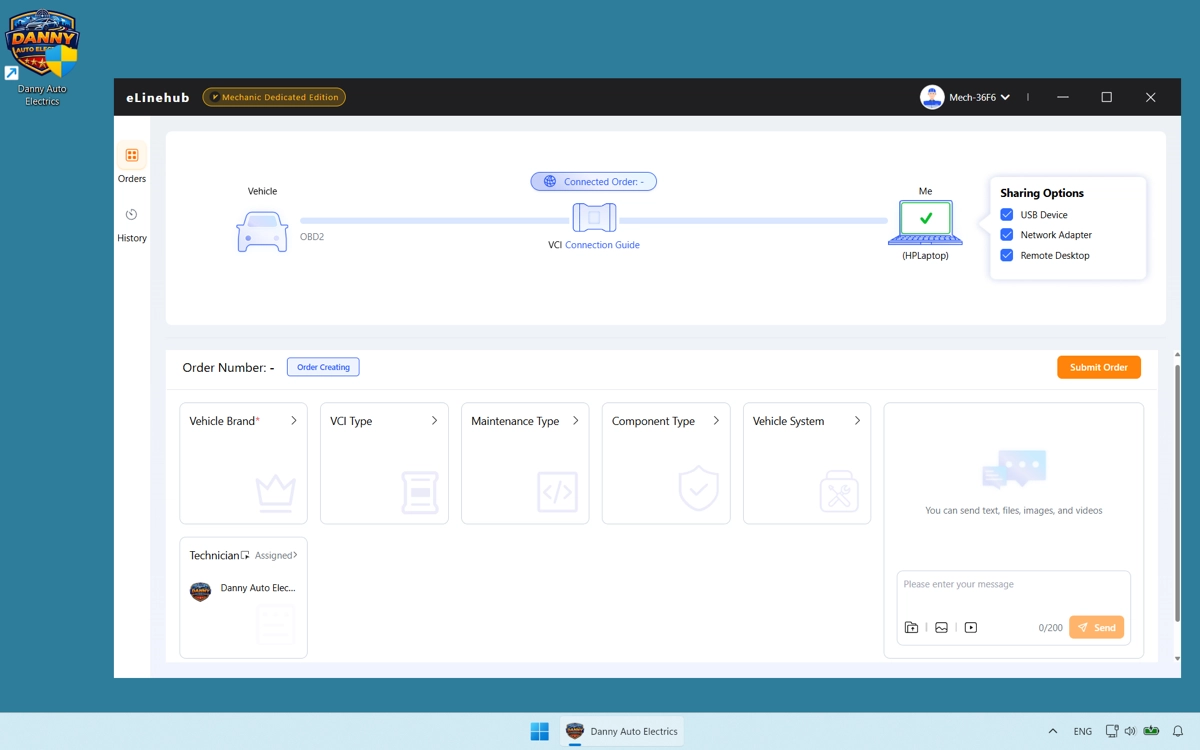
Before sharing the app, check a new order in the version the workshop will use.
Partner access
Check what the assigned partner can see before sharing an order.
Prerequisite: Create Your Team
Check team assignment and the branded Mechanic app separately. Confirm which features your account includes and what happens to new and existing orders when access ends.
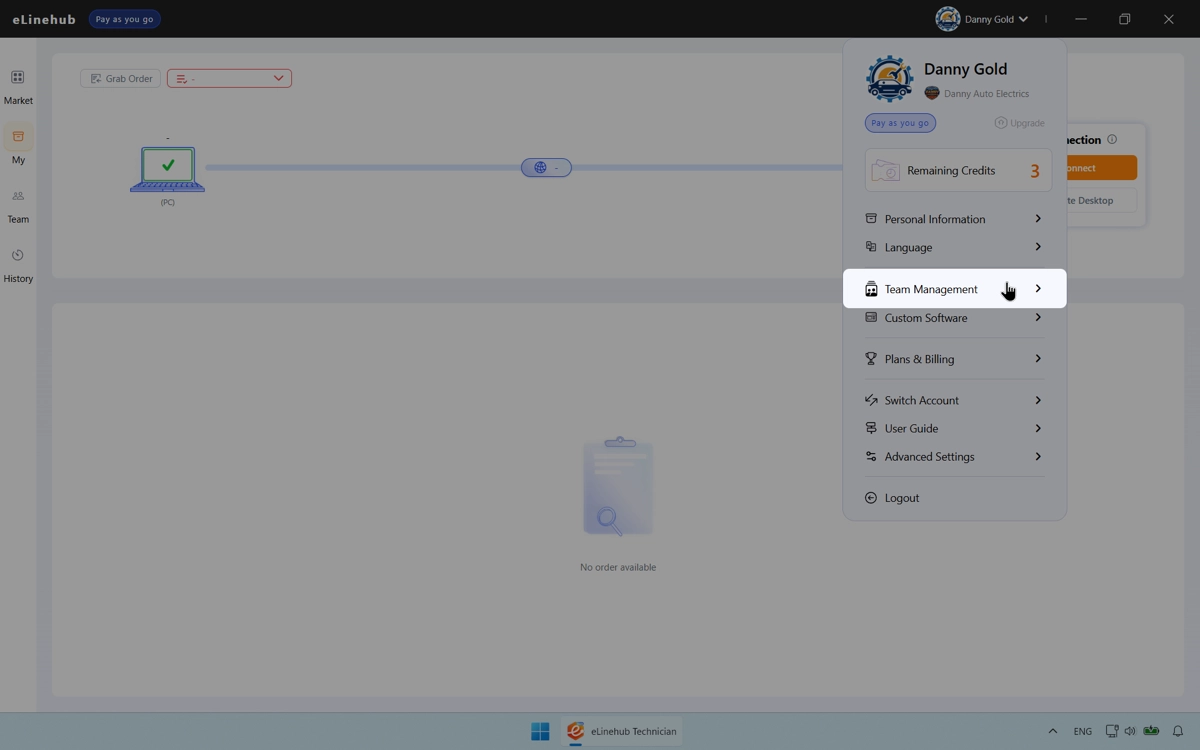
In eLinehub Technician, go to Profile → Team Management.
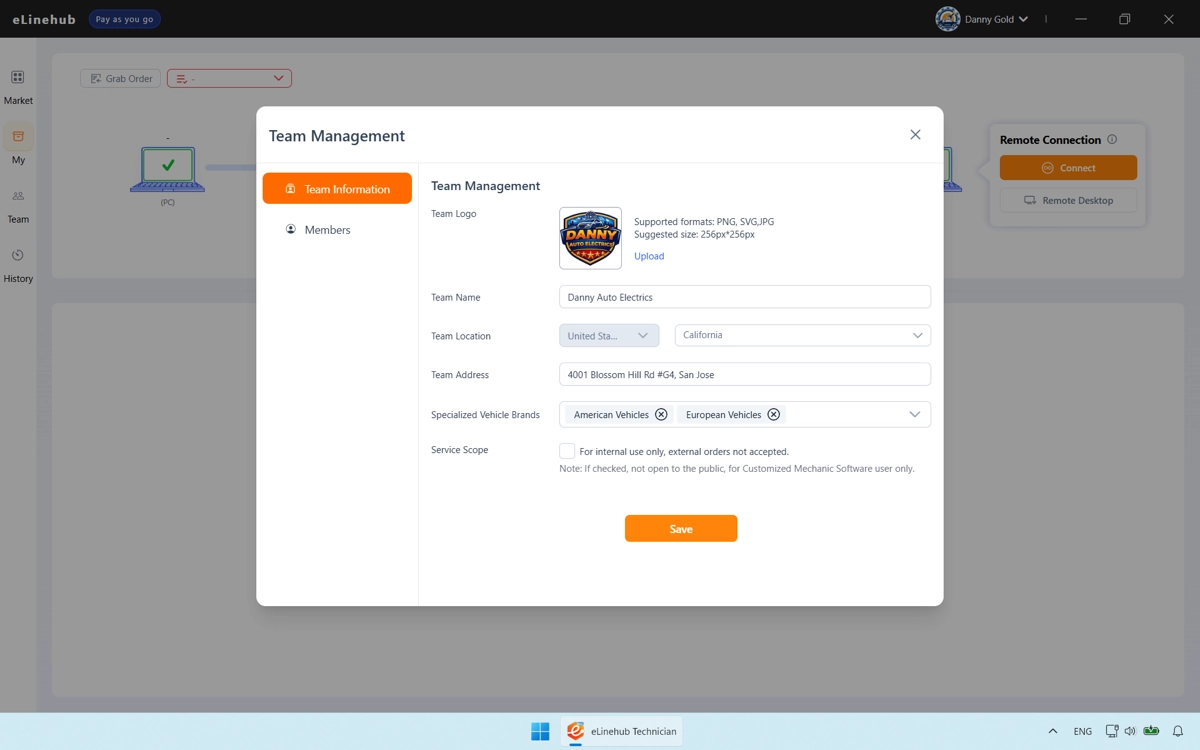
Upload your logo, enter a team name, and click Save. Your team is active immediately.
Team Order Management
If the order allows team assignment, choose the specialist from the order details and check their access before handing off the job.
Add Team Members
In Team Management, click Invite.
Enter the member’s email address and confirm. Internal staff and external partners are invited through the same flow and appear in the same member list.
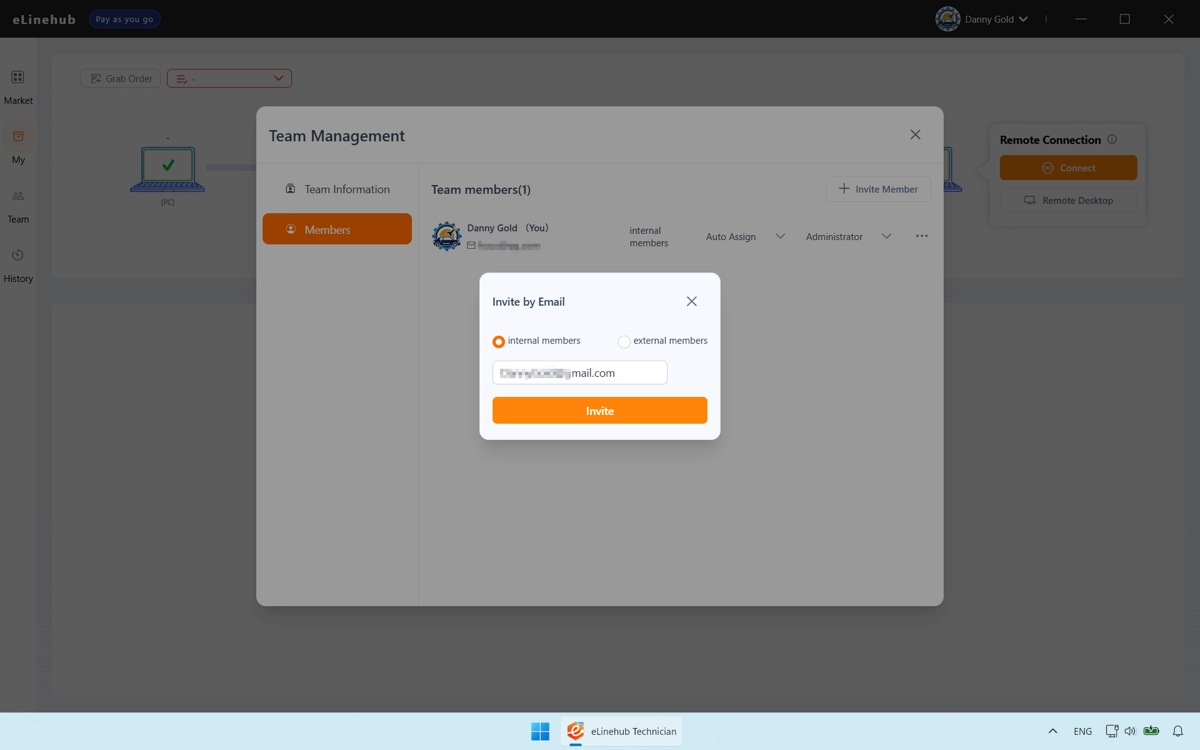
After inviting someone, check their membership status before assigning an order.
Assign Orders to Internal Members
When an order arrives in your queue, open it and use the assignment control to select a team member. The job transfers to their queue immediately.
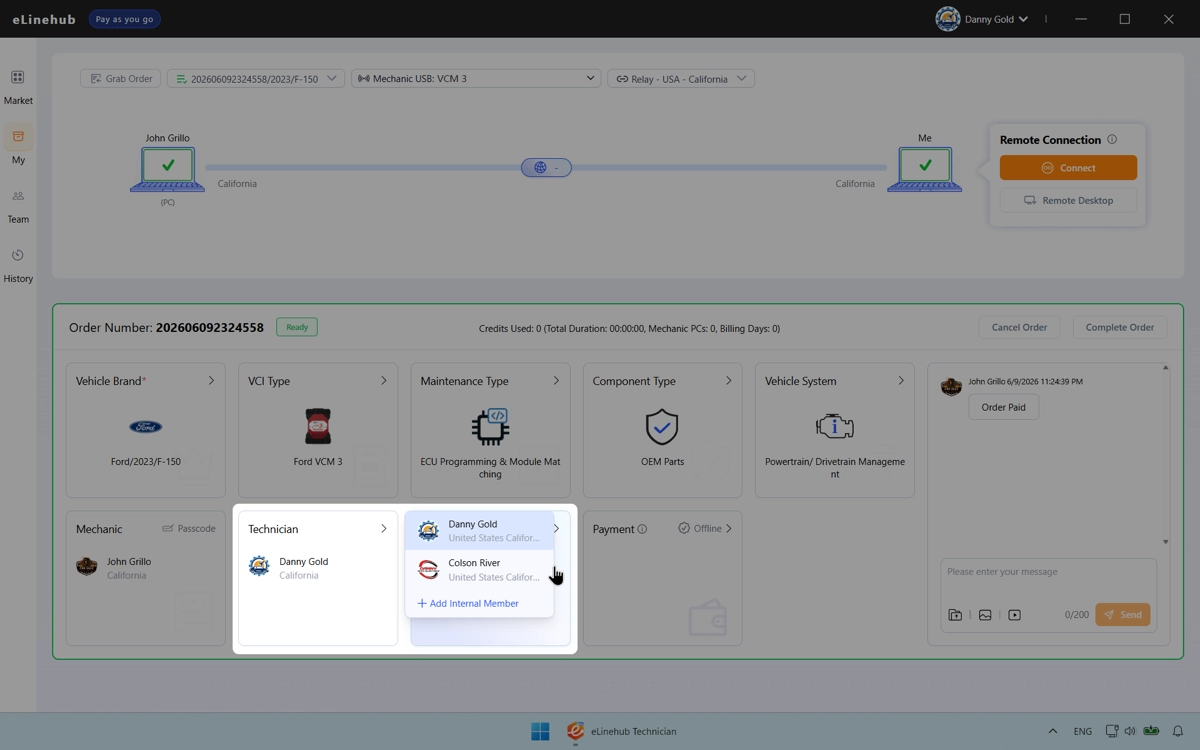
Review who can see the workshop’s contact details and vehicle information in the order.
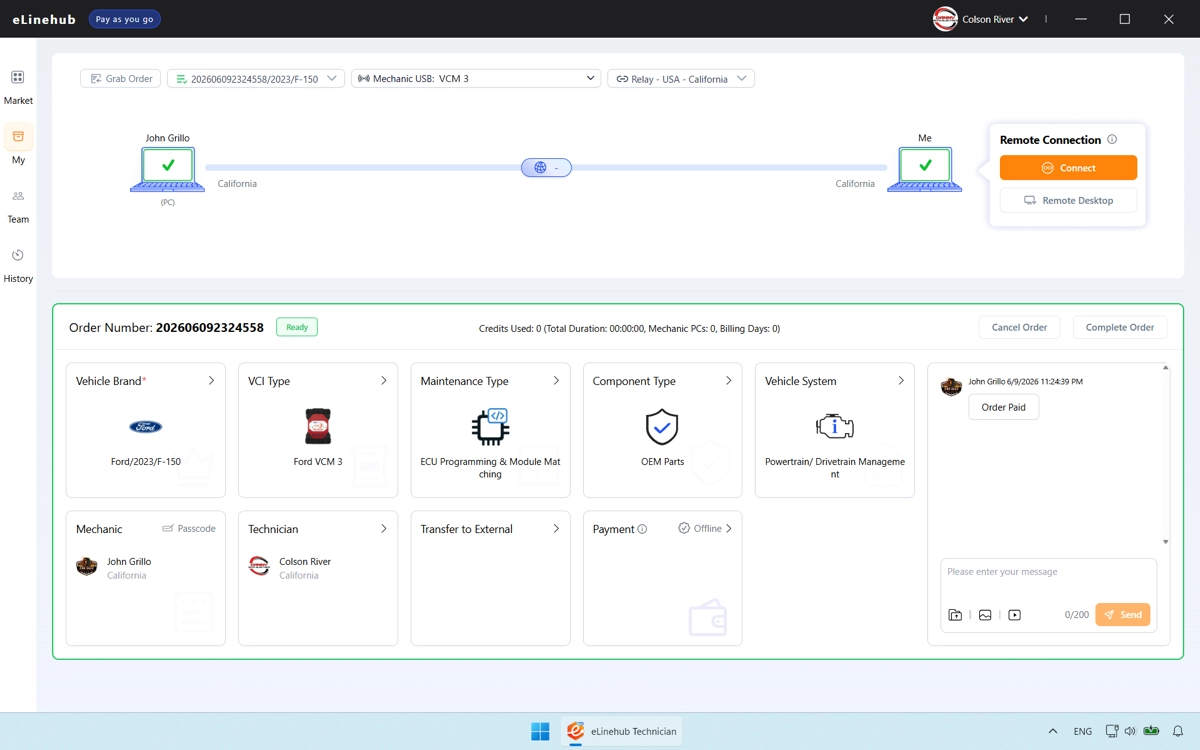
Delegate to External Partners
Review who can see the workshop’s contact details and vehicle information in the order.
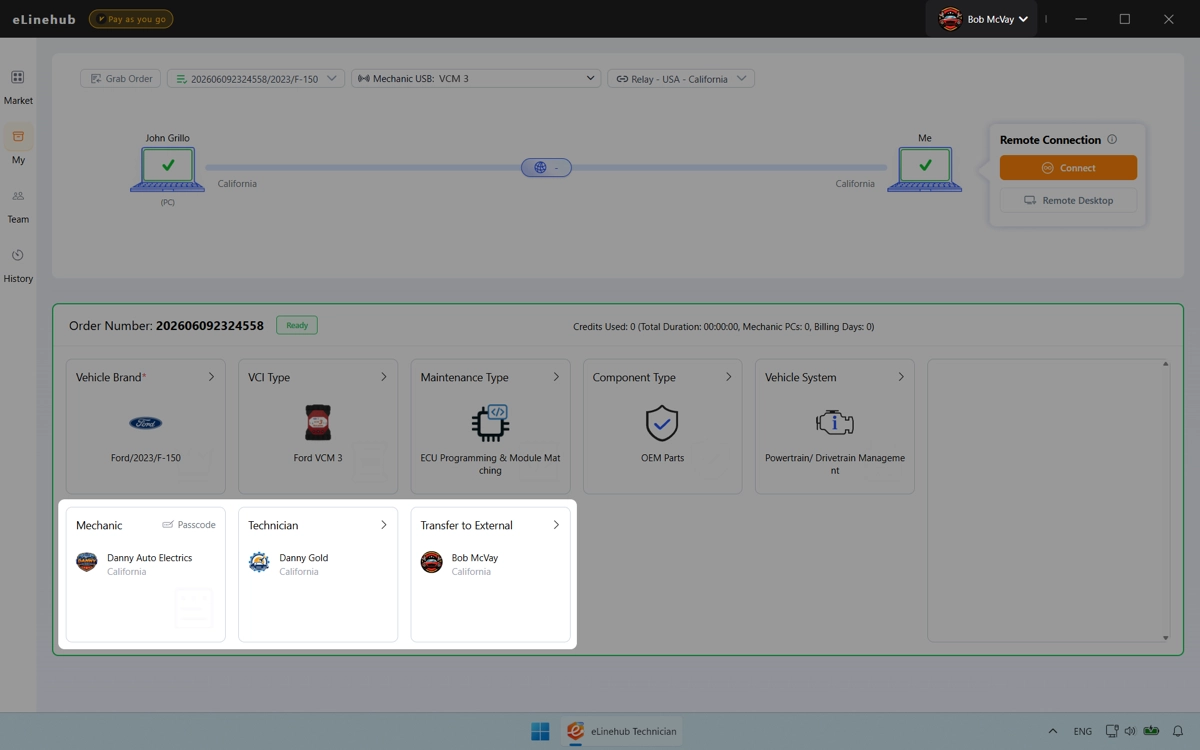
Vehicle and job details can identify a workshop even when its name is hidden.
Custom Mechanic Software
A branded Mechanic app can be configured for your team. Before sharing the installer, confirm the subscription, branding and where new orders will go.
Generate Your Branded App
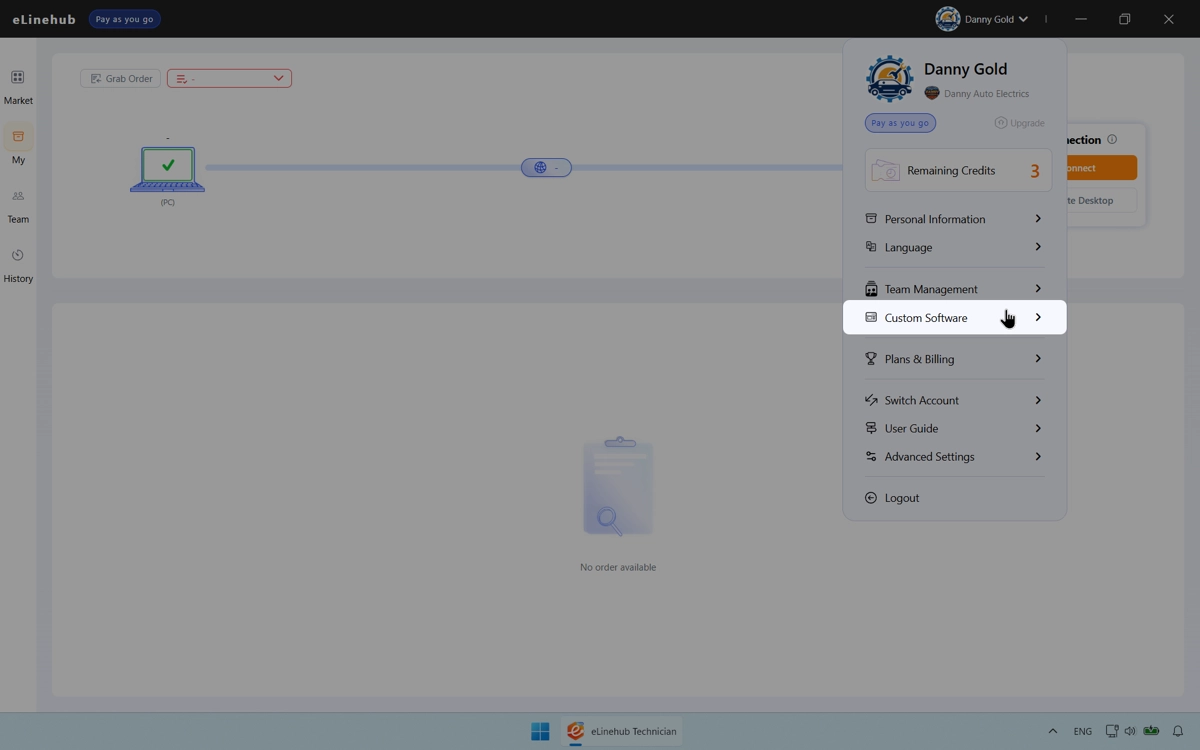
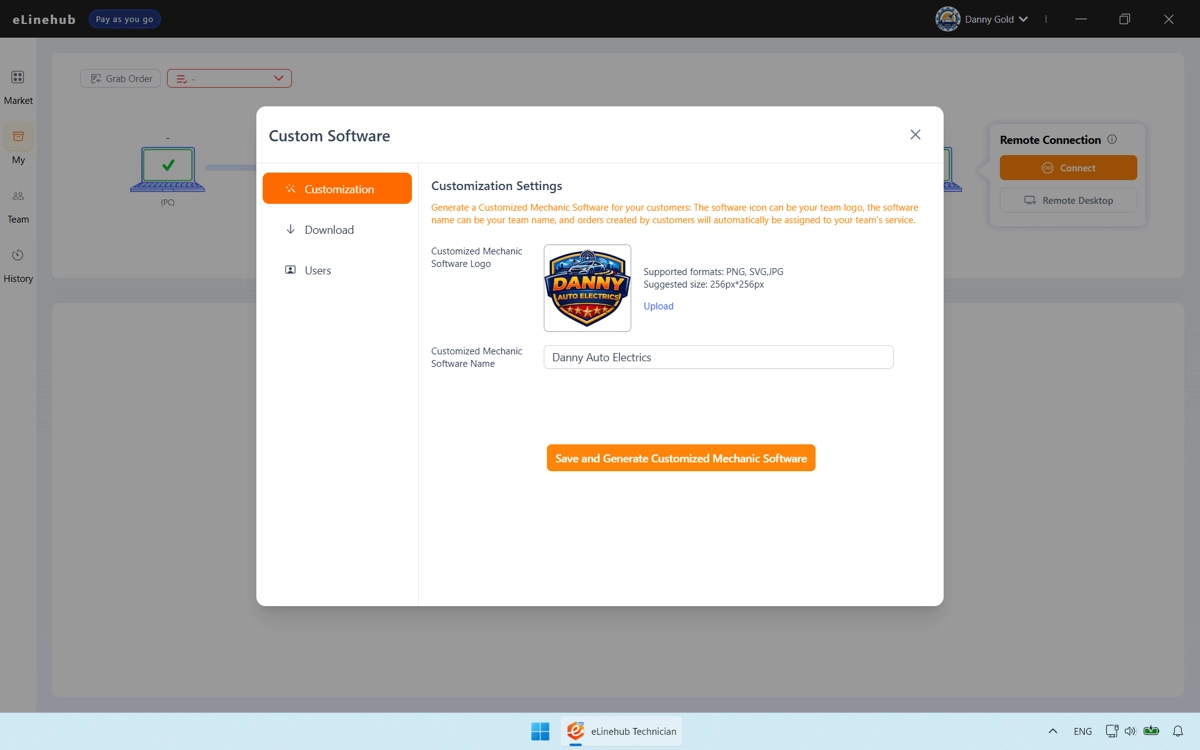
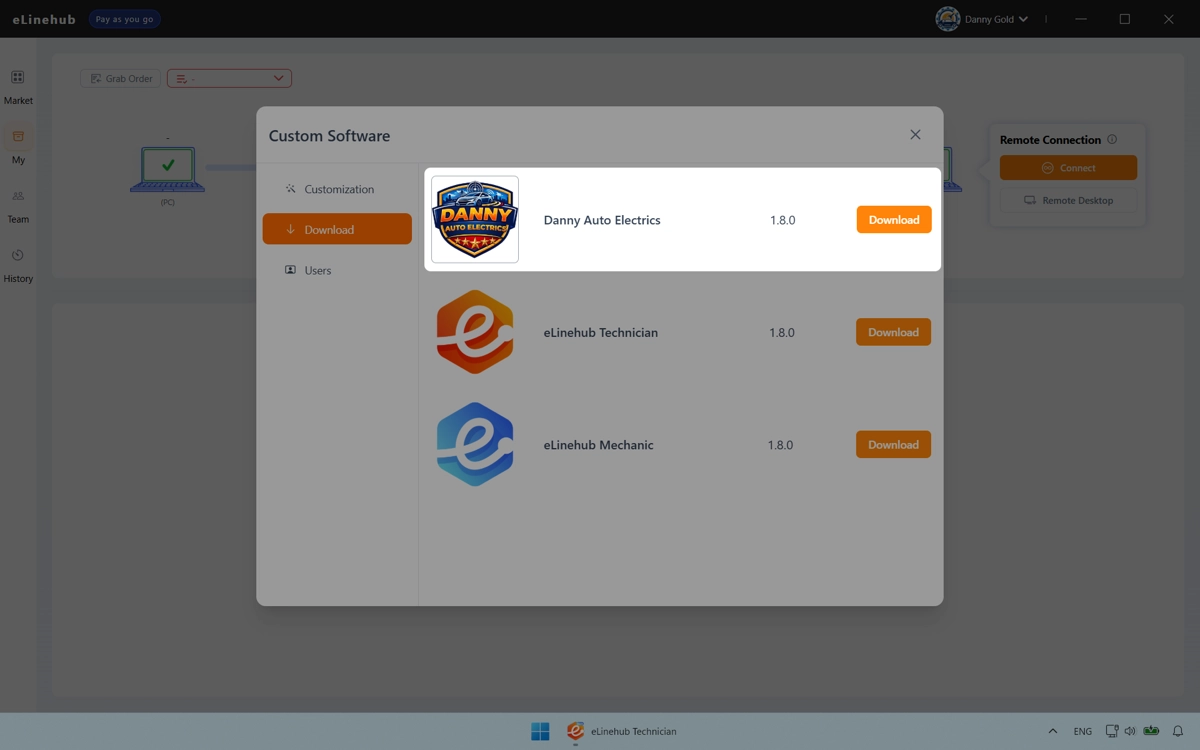
Go to Profile → Customized Software.
Your team logo and name are pre-filled from your team record. Adjust the app name if needed, then click Save and Generate Customized Mechanic Software.
Distribute to Your Workshops
Download the installer file and share it with your partner workshops — via email, WhatsApp, or any other channel that works for you. The app installs like any standard Windows application.
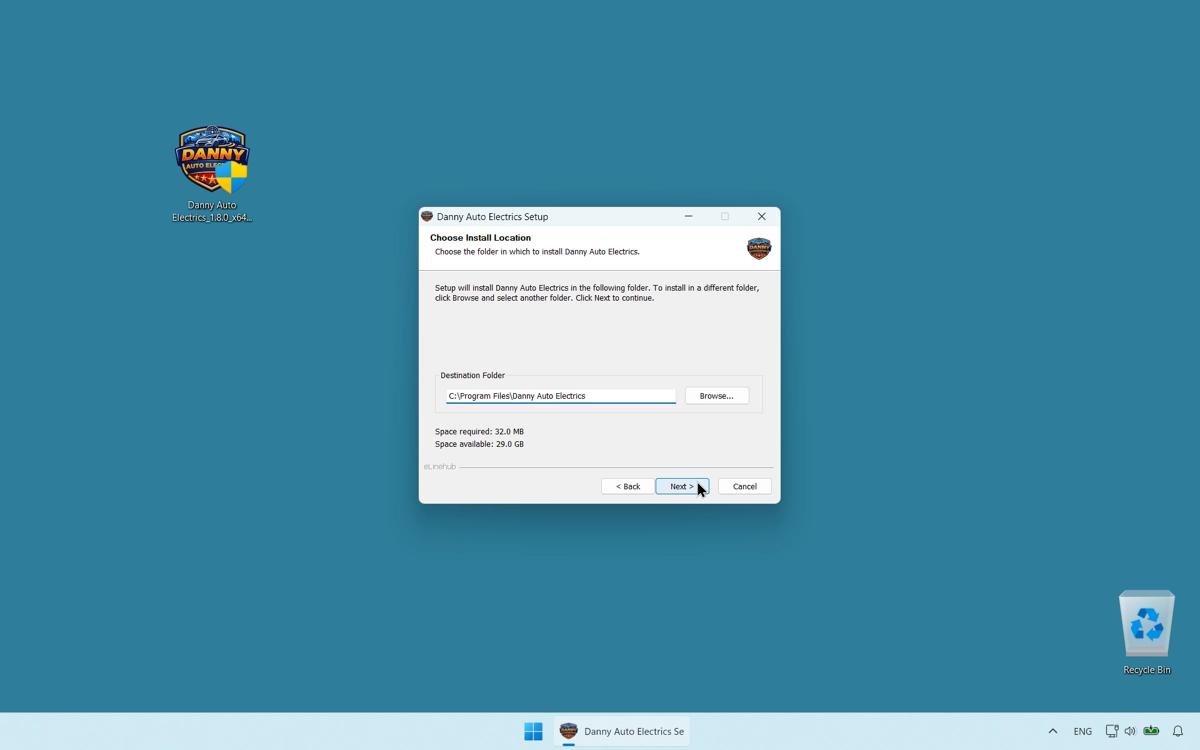
When eLinehub releases a core update, your custom version updates automatically in the background. Workshops that already have it installed do not need to download a new file or take any action — the update applies silently on next launch.
Check order destination
Before sharing the app, check a new order in the version the workshop will use.
Frequently Asked Questions
- How do I check a team member’s invitation?
- After inviting someone, check their membership status before assigning an order. The person you are inviting must have an active eLinehub Technician account. Ask them to register on eLinehub Technician first, then send the invitation. See the Technician User Guide for the full account setup walkthrough.
- How long does it take to generate a Custom Mechanic app?
- The system typically takes a few hours to build the app in the background. You do not need to keep the Customized Software page open during generation. A download link appears on the same page when the build is complete.
- What information can an external partner see when I delegate a job to them?
- Check what the assigned partner can see before sharing an order. Vehicle and job details can identify a workshop even when its name is hidden.
- What happens to my partner workshops’ app if my subscription lapses?
- Before a subscription expires, check with eLinehub how the change affects app branding, new orders and orders already in progress.
- Do workshops need to reinstall the app when eLinehub releases an update?
- No. When eLinehub releases a core update, the custom Mechanic app updates automatically in the background on next launch. Workshops that already have it installed do not need to download a new file or take any action.
- What should I check before assigning an order to a teammate?
- If the order allows team assignment, choose the specialist from the order details and check their access before handing off the job.